¶ What is SN
Serial Number (Serial Number, SN) is a 12-character string used to uniquely identify a device.
¶ Whyto look up SN
The corresponding SN needs to be provided during after-sales service.
After replacing the printer's Ap board, the SN must be updated; otherwise, the printer will not be able to enjoy after-salesservice normally.
¶ How to Find the Original SN
You can view the original SN on the printer screen or by scanning the QR code on the printer body.
¶ Method 1: Obtain the SN from the printer screen
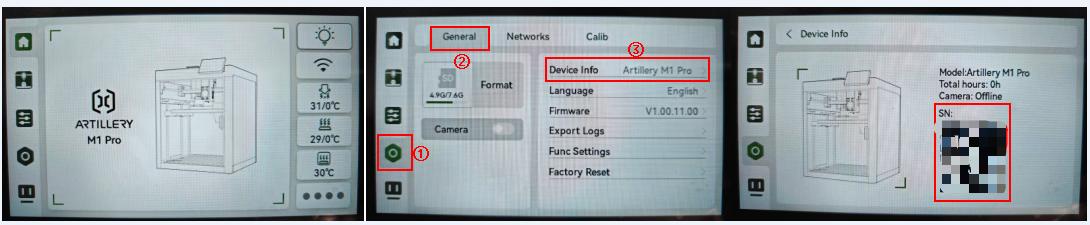
Power on to enter the main interface, click Settings - About This Device, and the SN code will be displayed.
 |
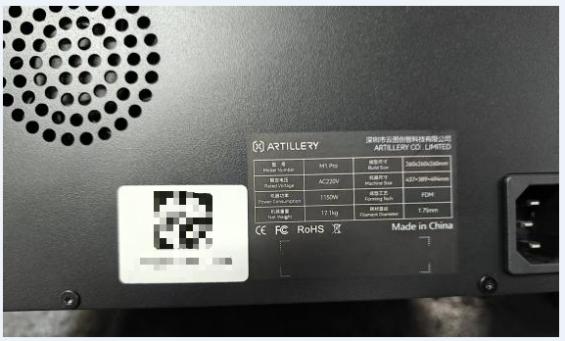
¶ Method 2: Obtain SN on the machine's rear cover plate
The SN code can be viewed directly, or the SN code can be viewed by scanning the QR code above.
 |
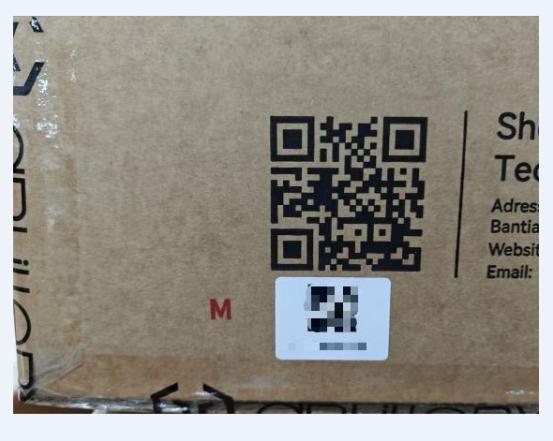
¶ Method 3: Obtain SN on the machine's outer box
The SN code can be viewed directly, or the SN code can be viewed by scanning the QR code above.
 |

Method 4: Obtain the SN on the back of the randomly distributed manual
The SN code can be viewed directly, or the SN code can be viewed by scanning the QR code above.
 |
¶ How to find the new SN on the AP board
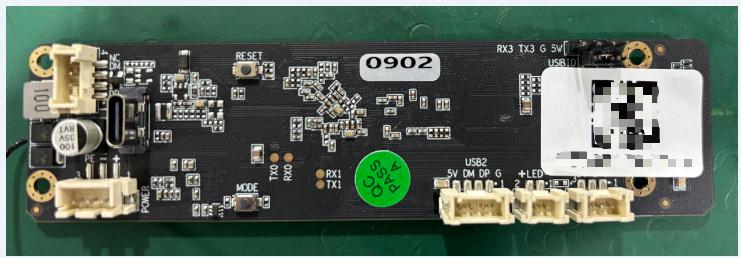
Scanning the QR code on the AP board can help locate the printer's new SN. If the printer's screen is functioning normally, even after replacing the AP board, the new SN can be read from the screen.
The QR code of the new AP board is located on the back of the AP motherboard
 |
¶ How to Activate the New SN
This section introduces how to activate the new SN after receiving and installing the new AP board.
After replacing the AP board, the printer's SN will automatically generate from the AP board's SN (the original SN becomes immediately invalid).
1. Before installing the AP board, take photos to record the new SN and the original SN.